> ## Documentation Index
> Fetch the complete documentation index at: https://second.tech/docs/llms.txt
> Use this file to discover all available pages before exploring further.
# Create and track charges
> Create a charge from the Bark Pay dashboard, share its checkout link or payment details, and follow it from pending to paid, underpaid, expired, or cancelled.
A charge is a request for a fixed amount, payable once. The **Charges** page lists every charge of the current mode.
## Create a charge
Use this to bill a customer by hand.
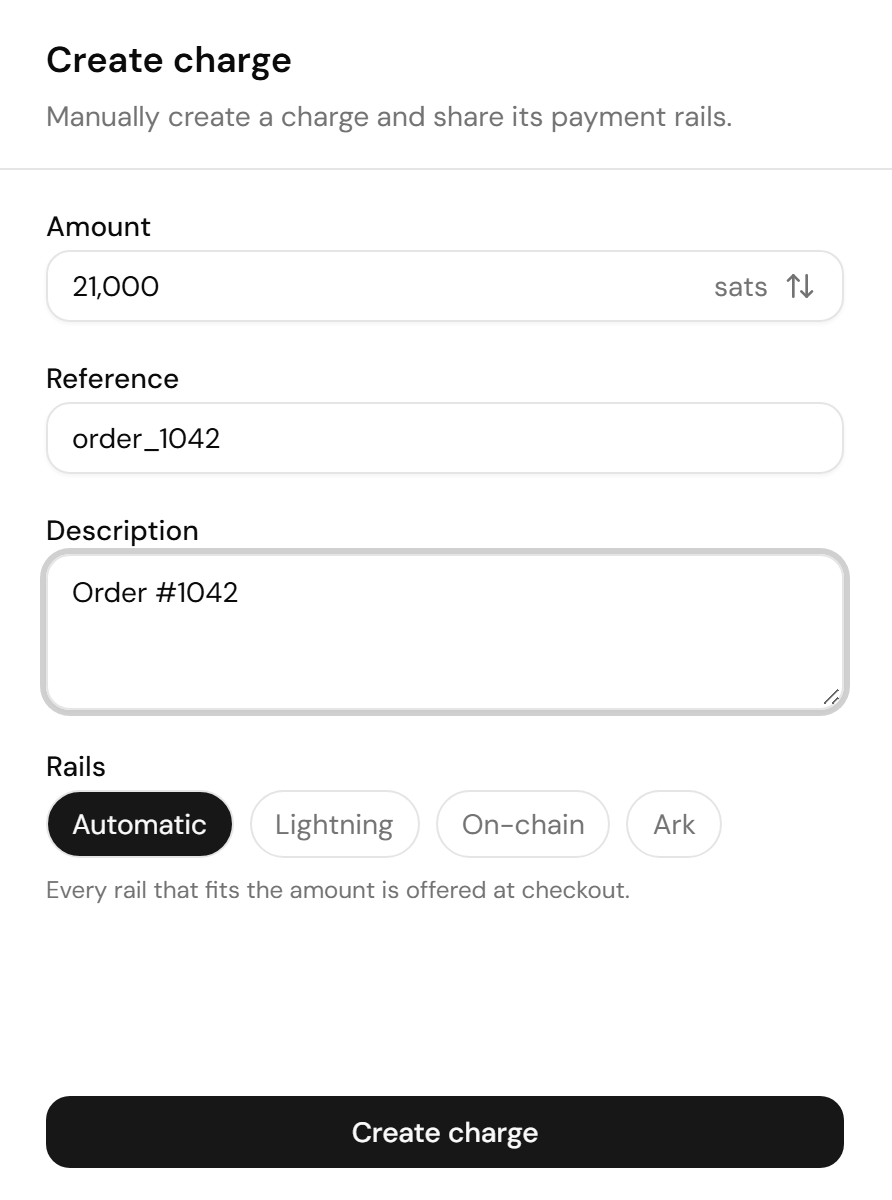
Enter the amount in sats. To price the charge in fiat, select the arrows next to **sats**, enter the amount, and select **USD** or **EUR** in the **Currency** field. The sats amount locks at creation.
**Reference** is for you, for example your order number. Bark Pay shows **Description** to the customer at checkout. Both are optional.
Bark Pay then offers every payment method that fits the amount. Select **Lightning**, **On-chain**, or **Ark** to restrict the charge instead.
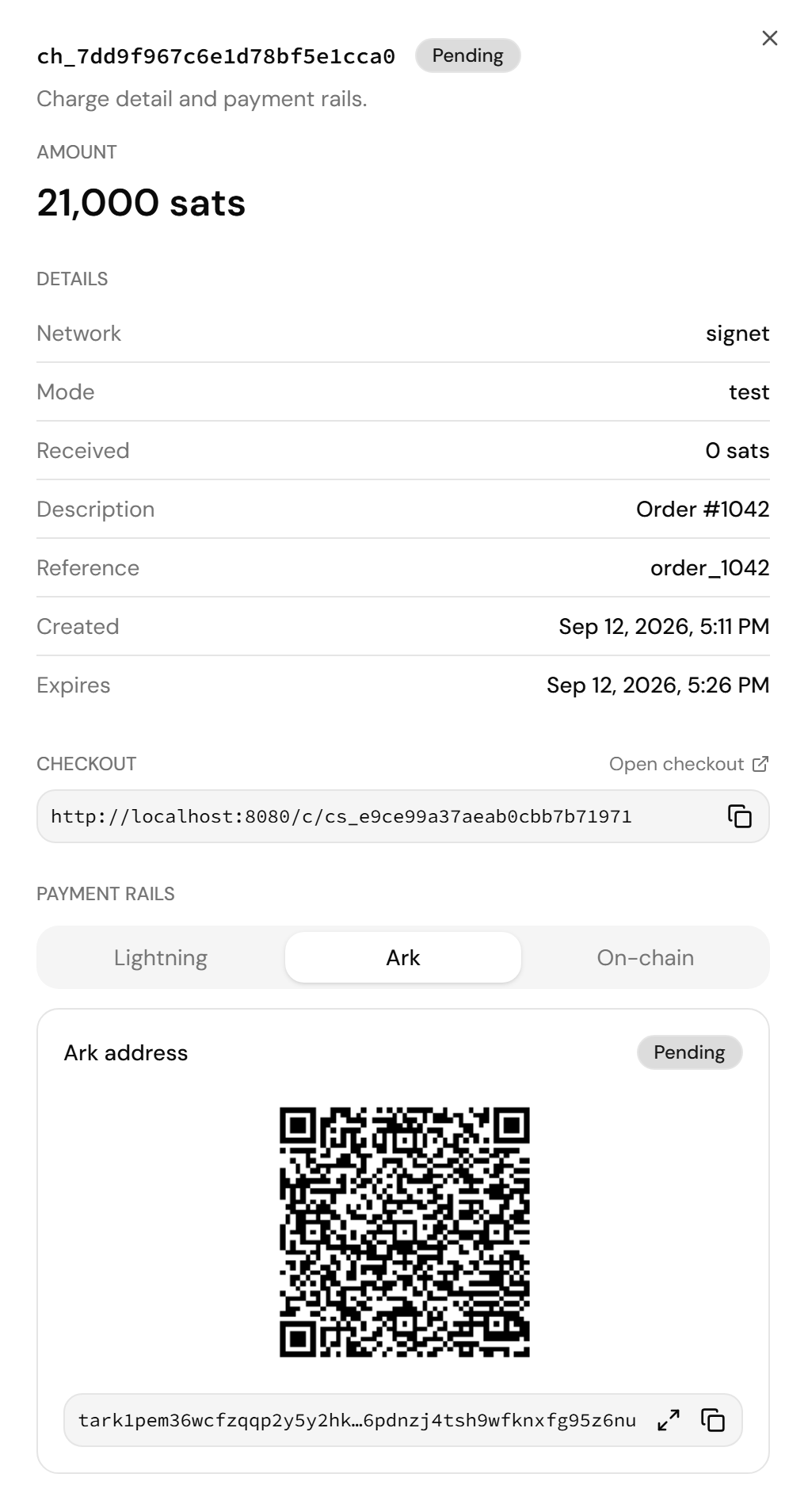
The charge detail opens with its payment details and checkout link.
 The charge expires after the **Invoice TTL** set in [Settings](/docs/bark-pay/settings#charge-defaults), 15 minutes by default. Lightning starts at 1 sat, and Ark and on-chain at 546 sats. The Ark server's maximum VTXO size also caps Lightning and Ark from above. On **Automatic**, Bark Pay offers only the methods the amount fits. If you restrict the rails yourself, Bark Pay refuses the charge and names the limit.
## Share the payment details
Two ways to get paid:
* **Checkout link:** Select **Open checkout** to preview the [hosted checkout page](/docs/bark-pay/checkout), or copy its URL and send it to your customer.
* **Payment rails:** Select the **Lightning**, **Ark**, or **On-chain** tab to show that method's QR code and copy its invoice or address, for example to display at a counter.
The charge expires after the **Invoice TTL** set in [Settings](/docs/bark-pay/settings#charge-defaults), 15 minutes by default. Lightning starts at 1 sat, and Ark and on-chain at 546 sats. The Ark server's maximum VTXO size also caps Lightning and Ark from above. On **Automatic**, Bark Pay offers only the methods the amount fits. If you restrict the rails yourself, Bark Pay refuses the charge and names the limit.
## Share the payment details
Two ways to get paid:
* **Checkout link:** Select **Open checkout** to preview the [hosted checkout page](/docs/bark-pay/checkout), or copy its URL and send it to your customer.
* **Payment rails:** Select the **Lightning**, **Ark**, or **On-chain** tab to show that method's QR code and copy its invoice or address, for example to display at a counter.
 ## Follow a charge's status
While any charge on the page is pending, underpaid, or expired, the list refreshes itself every ten seconds. Filter it with the **All statuses** dropdown, and select a row to reopen its payment details:
| Status | Meaning |
| - | - |
| Pending | Created, no payment received yet. |
| Paid | The full amount arrived before expiry. |
| Paid late | The full amount arrived after expiry, in one payment or as a top-up on an underpaid charge. |
| Underpaid | Less than the amount arrived. The payment details stay open until expiry so your customer can top up, and a later top-up still counts. |
| Overpaid | More than the amount arrived, including an extra payment on a charge that was already paid. |
| Expired | The charge reached its expiry without receiving anything. Bark Pay closes its Lightning invoice, but an Ark or on-chain payment that arrives afterwards still settles it. |
| Cancelled | Your server cancelled the charge through the API. Bark Pay records any bitcoin that arrives on it afterwards, but the status stays cancelled. |
Lightning and Ark payments settle within seconds. An on-chain payment settles once its transaction has one confirmation, so expect a wait of about ten minutes on that method.
The dashboard has no cancel button. To cancel a pending or underpaid charge, use the [cancel endpoint](/docs/bark-pay/integrate#cancel-a-charge) with a secret API key.
To accept a payment that lands a few sats off the amount, set an [amount tolerance](/docs/bark-pay/settings#rates). Payments within it count as paid instead of underpaid or overpaid.
This documentation is built and hosted on [Mintlify](https://mintlify.com), a developer documentation platform.
## Follow a charge's status
While any charge on the page is pending, underpaid, or expired, the list refreshes itself every ten seconds. Filter it with the **All statuses** dropdown, and select a row to reopen its payment details:
| Status | Meaning |
| - | - |
| Pending | Created, no payment received yet. |
| Paid | The full amount arrived before expiry. |
| Paid late | The full amount arrived after expiry, in one payment or as a top-up on an underpaid charge. |
| Underpaid | Less than the amount arrived. The payment details stay open until expiry so your customer can top up, and a later top-up still counts. |
| Overpaid | More than the amount arrived, including an extra payment on a charge that was already paid. |
| Expired | The charge reached its expiry without receiving anything. Bark Pay closes its Lightning invoice, but an Ark or on-chain payment that arrives afterwards still settles it. |
| Cancelled | Your server cancelled the charge through the API. Bark Pay records any bitcoin that arrives on it afterwards, but the status stays cancelled. |
Lightning and Ark payments settle within seconds. An on-chain payment settles once its transaction has one confirmation, so expect a wait of about ten minutes on that method.
The dashboard has no cancel button. To cancel a pending or underpaid charge, use the [cancel endpoint](/docs/bark-pay/integrate#cancel-a-charge) with a secret API key.
To accept a payment that lands a few sats off the amount, set an [amount tolerance](/docs/bark-pay/settings#rates). Payments within it count as paid instead of underpaid or overpaid.
This documentation is built and hosted on [Mintlify](https://mintlify.com), a developer documentation platform.