> ## Documentation Index
> Fetch the complete documentation index at: https://second.tech/docs/llms.txt
> Use this file to discover all available pages before exploring further.
# Take payments at checkout
> Check what your customers see on the Bark Pay hosted checkout page, follow the paid and expired states, and put your own name and logo on the page.
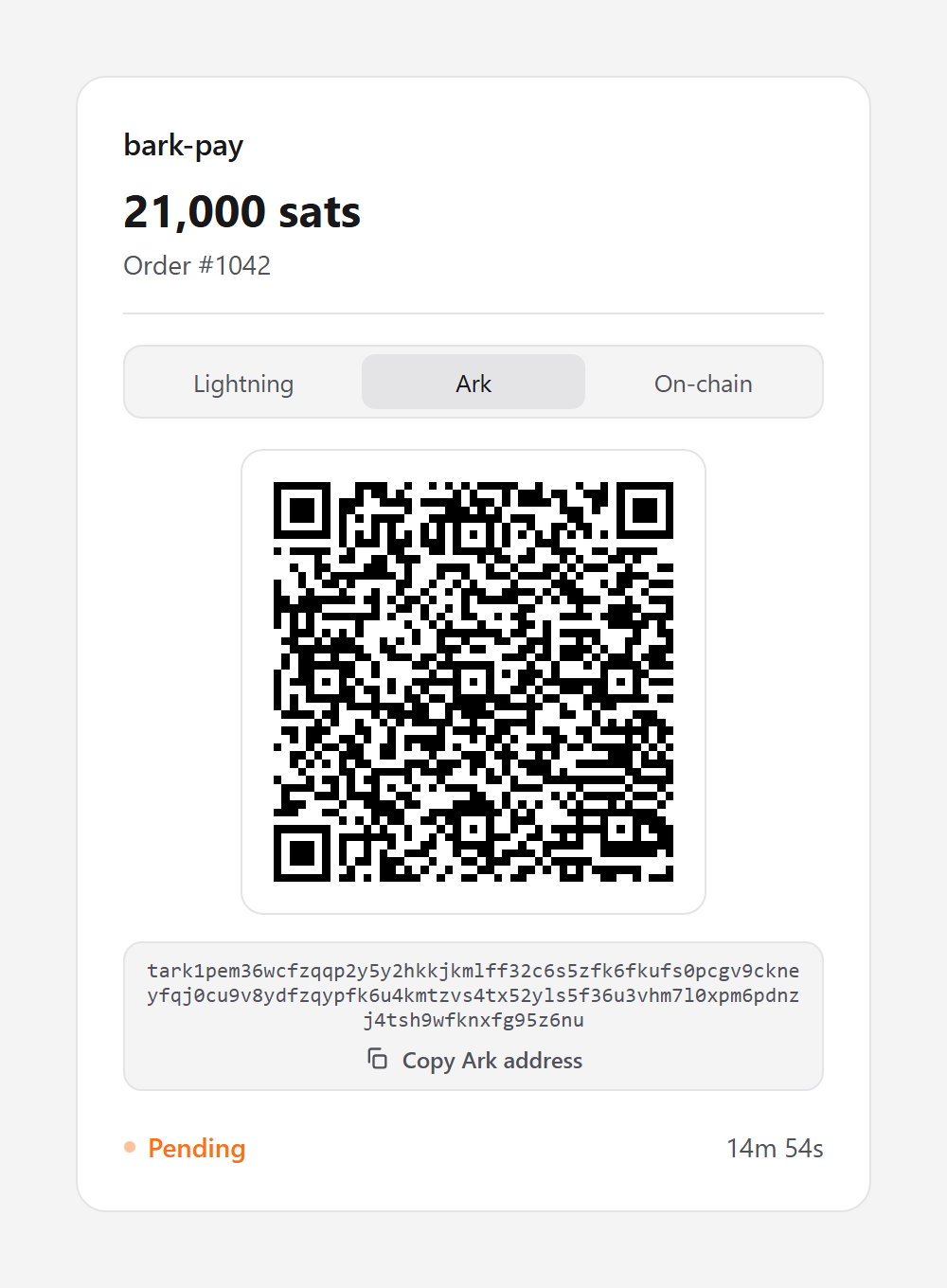
Every checkout link opens a page on your own Bark Pay domain. Your customer pays there, and the page confirms the payment on its own.
 ## Follow a payment on the page
Your customer scans the QR code with a wallet app, or selects **Copy Lightning invoice**, **Copy Ark address**, or **Copy On-chain address** and pastes it in. A charge with a single payment method shows no tabs. The page updates itself:
| State | What the page shows |
| - | - |
| Underpaid | The remaining amount, with the payment details still on screen for a top-up. |
| Paid | **Payment received** and a receipt. If the charge has a success URL, the page redirects there after a moment. |
| Expired or cancelled | The page reads **This charge is no longer payable.** If the page was open when the charge ended, the QR code first blurs under an **Expired** label. If the charge has a cancel URL, a **Return** link takes your customer back. |
## Checkout branding
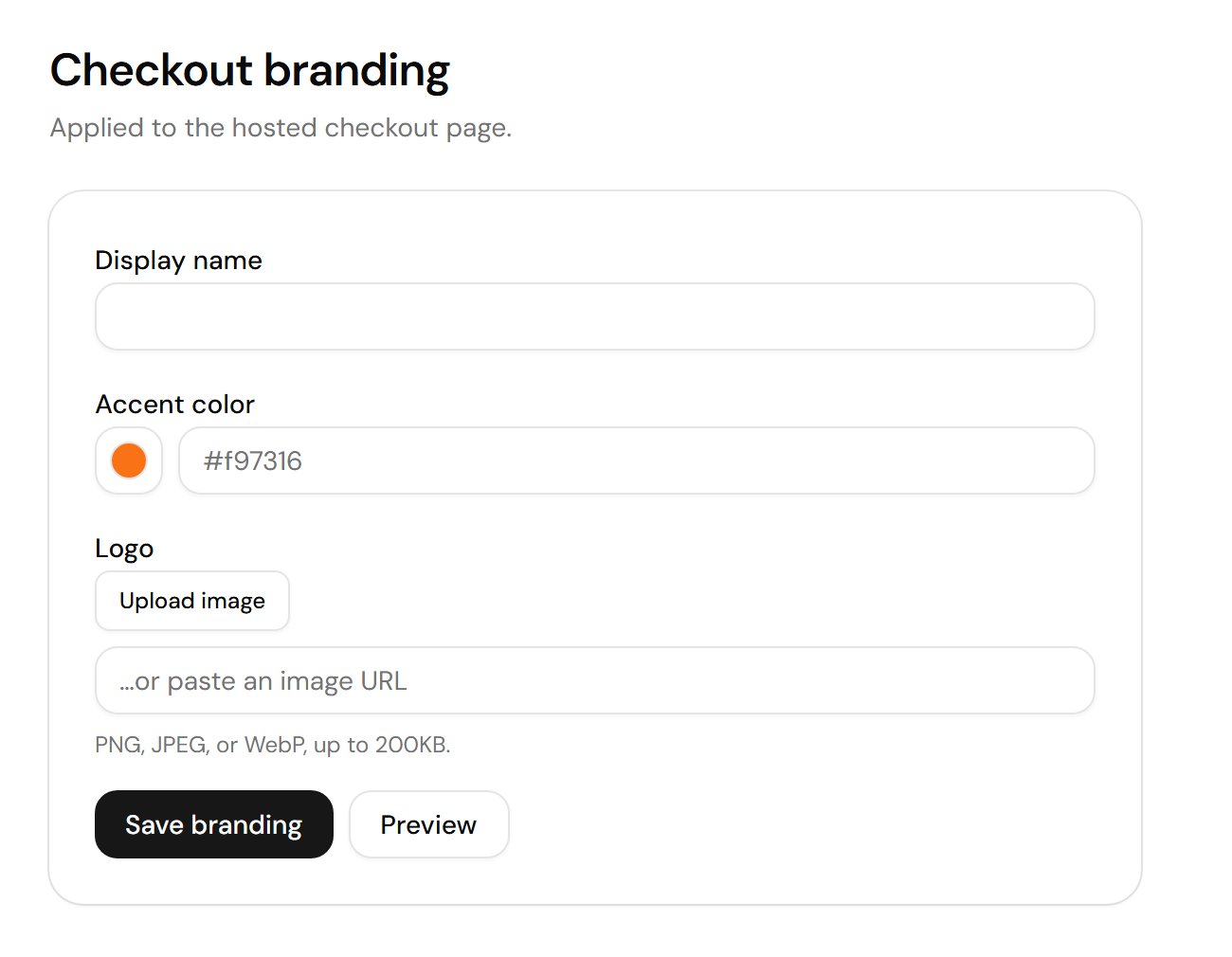
Select **Branding** in the sidebar to change how every checkout page looks:
* **Display name:** Replaces the `bark-pay` wordmark at the top of the page.
* **Accent color:** The highlight color, as a hex value. Select it from the swatch or type it.
* **Logo:** Upload a PNG, JPEG, or WebP up to 200 KB, or paste an image URL.
Select **Save branding** to apply your changes, or **Preview** to open a sample checkout in a new tab first.
## Follow a payment on the page
Your customer scans the QR code with a wallet app, or selects **Copy Lightning invoice**, **Copy Ark address**, or **Copy On-chain address** and pastes it in. A charge with a single payment method shows no tabs. The page updates itself:
| State | What the page shows |
| - | - |
| Underpaid | The remaining amount, with the payment details still on screen for a top-up. |
| Paid | **Payment received** and a receipt. If the charge has a success URL, the page redirects there after a moment. |
| Expired or cancelled | The page reads **This charge is no longer payable.** If the page was open when the charge ended, the QR code first blurs under an **Expired** label. If the charge has a cancel URL, a **Return** link takes your customer back. |
## Checkout branding
Select **Branding** in the sidebar to change how every checkout page looks:
* **Display name:** Replaces the `bark-pay` wordmark at the top of the page.
* **Accent color:** The highlight color, as a hex value. Select it from the swatch or type it.
* **Logo:** Upload a PNG, JPEG, or WebP up to 200 KB, or paste an image URL.
Select **Save branding** to apply your changes, or **Preview** to open a sample checkout in a new tab first.
 This documentation is built and hosted on [Mintlify](https://mintlify.com), a developer documentation platform.