> ## Documentation Index
> Fetch the complete documentation index at: https://second.tech/docs/llms.txt
> Use this file to discover all available pages before exploring further.
# Configure Bark Pay
> Set the charge expiry and amount tolerance, switch the dashboard between live and test mode, review the audit log, and change your Bark Pay admin password.
Configure Bark Pay on the **Rates** and **Settings** pages in the sidebar. A new **Invoice TTL** applies to charges created afterwards. A new amount tolerance applies to every payment that arrives afterwards, including payments to charges already open.
## Rates
Select **Rates** in the sidebar, then set these on the **Rate source** card:
* **Source:** Kraken. It's the only source, so the field is locked.
* **Amount tolerance (bps):** How far a payment may differ from the charge amount and still count as paid. 100 bps is 1%, and the default of 0 requires the exact amount.
Select **Save** to apply.
## Audit log
Select **Audit log** in the sidebar to see one row per admin action: what was done, the object it touched, the IP address behind it, and when it happened.
## Settings
 ### Appearance
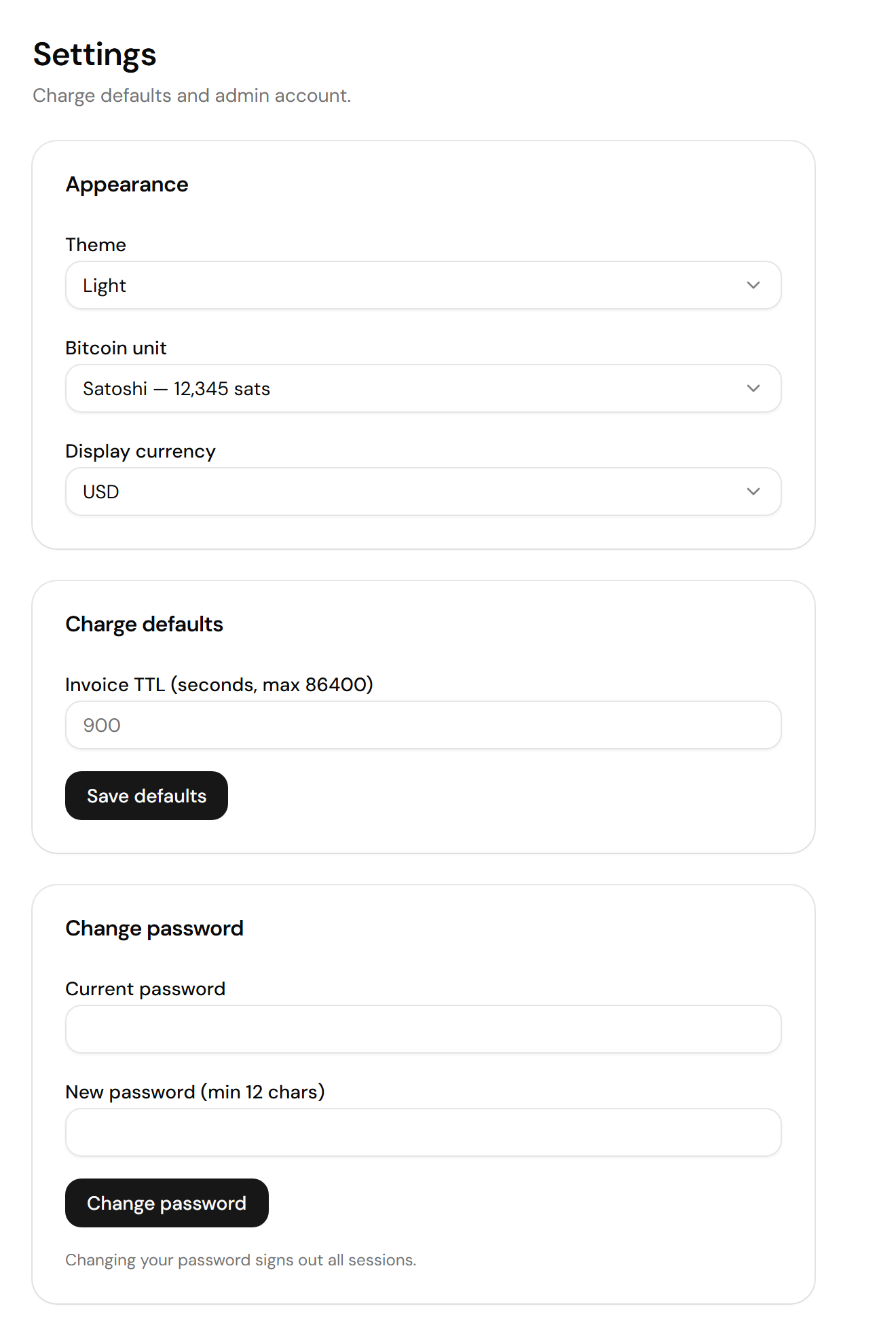
Go to **Settings** > **Appearance** for the preferences your browser stores:
* **Theme:** Light, Dark, or System.
* **Bitcoin unit:** Satoshi, Bitcoin (BTC), or Bitcoin (₿). The same balance reads `12,345 sats`, `0.00012345 BTC`, or `₿12,345`.
* **Display currency:** USD or EUR, for the fiat value on Overview and the default currency of new fiat-priced charges.
### Charge defaults
Go to **Settings** > **Charge defaults** and set **Invoice TTL**, how long a new charge stays payable, in seconds. The default is 900, or 15 minutes, and the maximum is 86,400. Select **Save defaults** to apply.
### Change password
Bark Pay rejects a new password that contains a common word such as `password`, `admin`, or `barkpay`.
Bark Pay signs out every session, including yours.
To sign out without changing anything, select your email in the sidebar footer, then **Log out**.
After five failed sign-in attempts, Bark Pay slows every further attempt on the account for 15 minutes. Each new failure restarts the wait. The right password still signs you in.
## Switch between live and test mode
Switch from **Live mode** to **Test mode** in the sidebar footer to work against the signet wallet you [added during installation](/docs/bark-pay/install#add-test-mode). Each browser remembers its own mode. An amber banner reads **Test mode — showing signet / test data** while it's on, and charges, API keys, webhooks, and events all switch with it.
Get free signet sats from [Second's faucet](https://signet.2nd.dev/).
This documentation is built and hosted on [Mintlify](https://mintlify.com), a developer documentation platform.
### Appearance
Go to **Settings** > **Appearance** for the preferences your browser stores:
* **Theme:** Light, Dark, or System.
* **Bitcoin unit:** Satoshi, Bitcoin (BTC), or Bitcoin (₿). The same balance reads `12,345 sats`, `0.00012345 BTC`, or `₿12,345`.
* **Display currency:** USD or EUR, for the fiat value on Overview and the default currency of new fiat-priced charges.
### Charge defaults
Go to **Settings** > **Charge defaults** and set **Invoice TTL**, how long a new charge stays payable, in seconds. The default is 900, or 15 minutes, and the maximum is 86,400. Select **Save defaults** to apply.
### Change password
Bark Pay rejects a new password that contains a common word such as `password`, `admin`, or `barkpay`.
Bark Pay signs out every session, including yours.
To sign out without changing anything, select your email in the sidebar footer, then **Log out**.
After five failed sign-in attempts, Bark Pay slows every further attempt on the account for 15 minutes. Each new failure restarts the wait. The right password still signs you in.
## Switch between live and test mode
Switch from **Live mode** to **Test mode** in the sidebar footer to work against the signet wallet you [added during installation](/docs/bark-pay/install#add-test-mode). Each browser remembers its own mode. An amber banner reads **Test mode — showing signet / test data** while it's on, and charges, API keys, webhooks, and events all switch with it.
Get free signet sats from [Second's faucet](https://signet.2nd.dev/).
This documentation is built and hosted on [Mintlify](https://mintlify.com), a developer documentation platform.