> ## Documentation Index
> Fetch the complete documentation index at: https://second.tech/docs/llms.txt
> Use this file to discover all available pages before exploring further.
# Export your Bark activity
> Export every Bark payment and maintenance operation of your store from the BTCPay Server Reporting page, with the columns your accountant needs.
The plugin feeds a **Bark Wallet** report into your store's **Reporting** page, alongside BTCPay's own reports.
Select **Reporting** in your store's sidebar.
Open the report dropdown and select **Bark Wallet**.
The date filter works as for any other BTCPay report.
BTCPay downloads the rows as a CSV file.
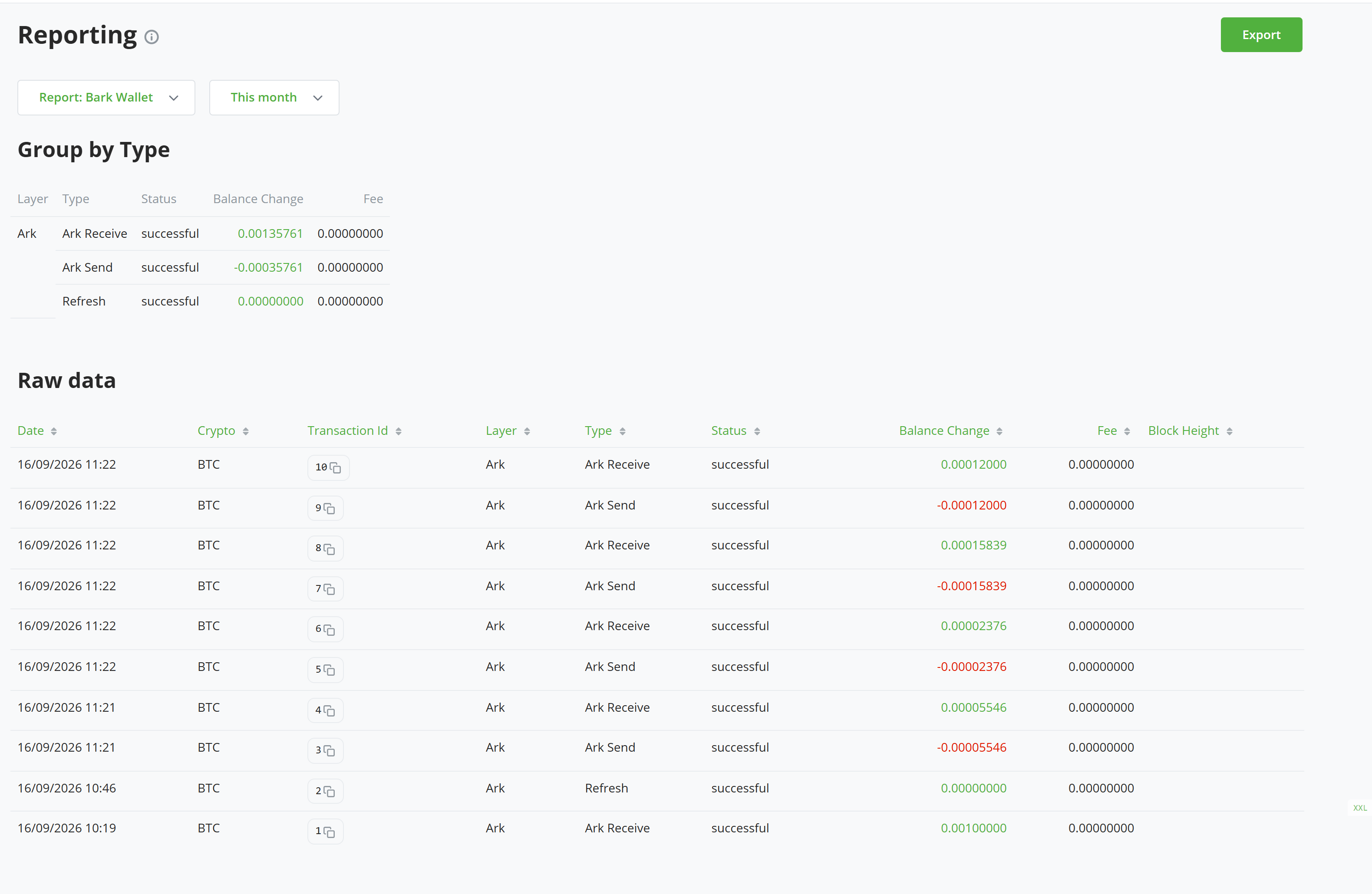 ## Read the columns
| Column | What it contains |
| ------------- | -------------------------------------------------------------------------------------------------------------------------------------------------------------------------------------------------------------------------- |
| Date | When the payment last changed status, or when it was created. On-chain rows use the time the plugin first saw them, or a time estimated from the block height if they were already confirmed. |
| Crypto | Always BTC. |
| TransactionId | The Bark payment ID, or the transaction ID for on-chain rows. |
| Layer | Lightning, Ark, or On-chain. Boards, offboards, and exits count as On-chain, since they settle on-chain. |
| Type | Lightning Receive, Lightning Send, Ark Receive, Ark Send, Refresh, Board, Offboard, Exit, or the On-chain Receive, On-chain Send, and On-chain Internal rows of the Bark on-chain wallet. |
| Status | successful, pending, failed, or canceled for Bark payments; confirmed or pending for on-chain rows. |
| BalanceChange | The amount, in BTC. On-chain Internal rows are the on-chain side of boards, offboards, and exits. They show 0 here and carry only their fee, because the matching Board, Offboard, or Exit row already carries the amount. |
| Fee | The fee, in BTC. |
| BlockHeight | The confirmation height, for on-chain rows. |
Refreshes appear only once they succeed.
## Read the columns
| Column | What it contains |
| ------------- | -------------------------------------------------------------------------------------------------------------------------------------------------------------------------------------------------------------------------- |
| Date | When the payment last changed status, or when it was created. On-chain rows use the time the plugin first saw them, or a time estimated from the block height if they were already confirmed. |
| Crypto | Always BTC. |
| TransactionId | The Bark payment ID, or the transaction ID for on-chain rows. |
| Layer | Lightning, Ark, or On-chain. Boards, offboards, and exits count as On-chain, since they settle on-chain. |
| Type | Lightning Receive, Lightning Send, Ark Receive, Ark Send, Refresh, Board, Offboard, Exit, or the On-chain Receive, On-chain Send, and On-chain Internal rows of the Bark on-chain wallet. |
| Status | successful, pending, failed, or canceled for Bark payments; confirmed or pending for on-chain rows. |
| BalanceChange | The amount, in BTC. On-chain Internal rows are the on-chain side of boards, offboards, and exits. They show 0 here and carry only their fee, because the matching Board, Offboard, or Exit row already carries the amount. |
| Fee | The fee, in BTC. |
| BlockHeight | The confirmation height, for on-chain rows. |
Refreshes appear only once they succeed.