> ## Documentation Index
> Fetch the complete documentation index at: https://second.tech/docs/llms.txt
> Use this file to discover all available pages before exploring further.
# Swap bitcoin to Lightning
> Send on-chain bitcoin to Swaptopia and have it paid out over Lightning, to an invoice or Lightning address of your choice, in a single swap.
Swaptopia asks for the Lightning invoice only after your bitcoin confirms, so you create it for the exact figure the swap pays. On mainnet, a swap starts at 51,000 sats or more.
You need:
* An on-chain wallet app holding the amount you send, plus its own miner fee.
* A Lightning wallet app that can create an invoice, or a Lightning address.
## Start the swap
**Bitcoin** sits under **You send** and **Lightning** under **You receive**. If they are the other way round, select the **Swap direction** button.
Enter the amount in sats under **You send**, or select a preset. To get a set amount over Lightning instead, enter it under **You receive**. Either way, the quote is an estimate. Swaptopia raises an amount under the smallest swap the Ark server takes. A note on the swap card says so. [Read the quote](/docs/swaptopia/fees-and-limits#read-the-quote) explains each fee line.
Swaptopia opens the **Send bitcoin** stage with an address to fund.
## Fund the address
Scan the QR code with your on-chain wallet app, which also fills in the amount, or select **Copy address**.
Your on-chain wallet app adds its own miner fee on top. Swaptopia swaps whatever arrives at the address.
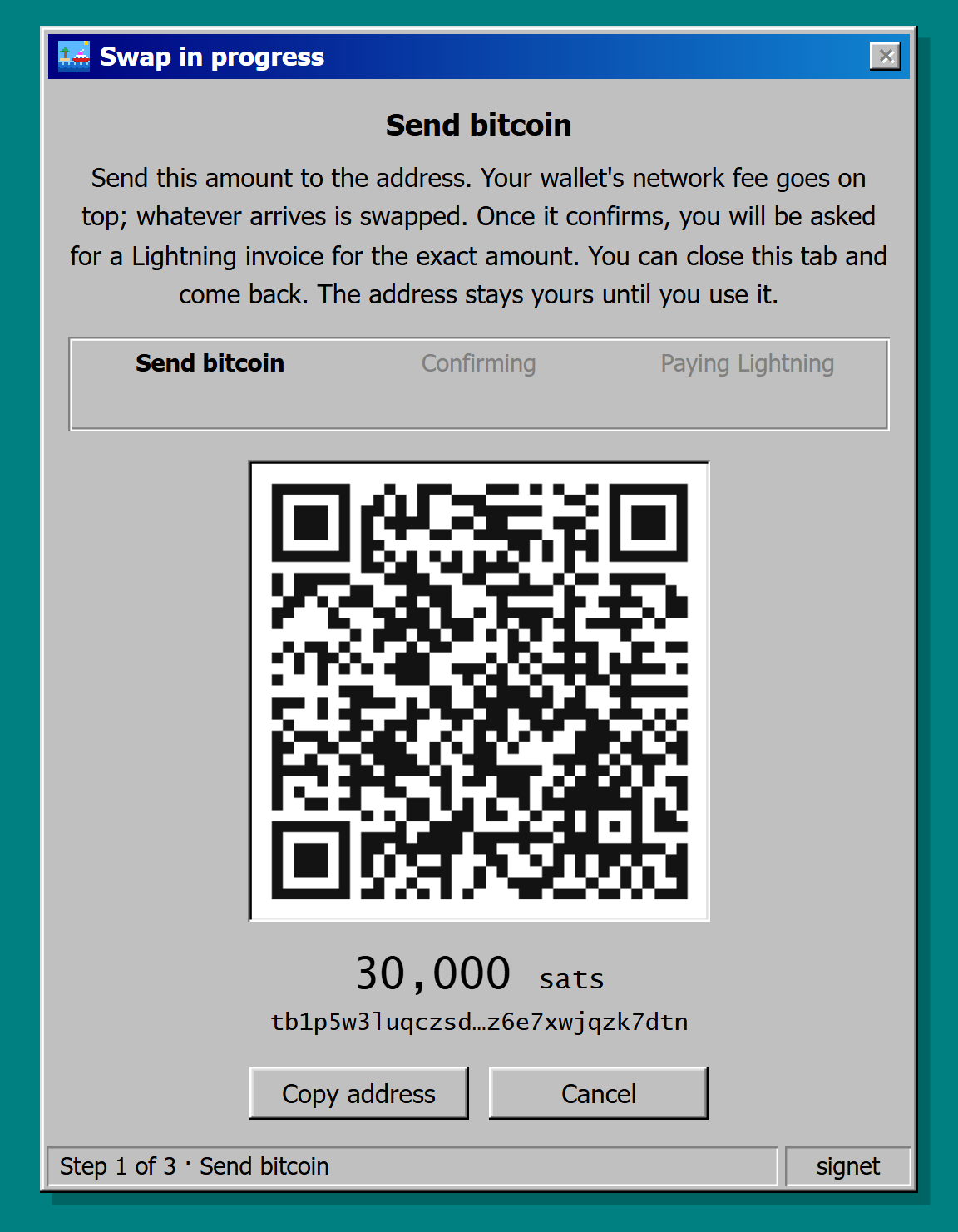 To stop before you send anything, select **Cancel**.
If less than the minimum arrives, [top up the same address](/docs/swaptopia/troubleshooting#received-less-than-the-minimum).
If more than 0.1 BTC arrives on mainnet, Swaptopia swaps the maximum. The rest stays in the wallet and becomes [leftover sats](/docs/swaptopia/wallet#send-leftover-sats) if it reaches the Ark server's boarding minimum.
## Wait for the confirmations
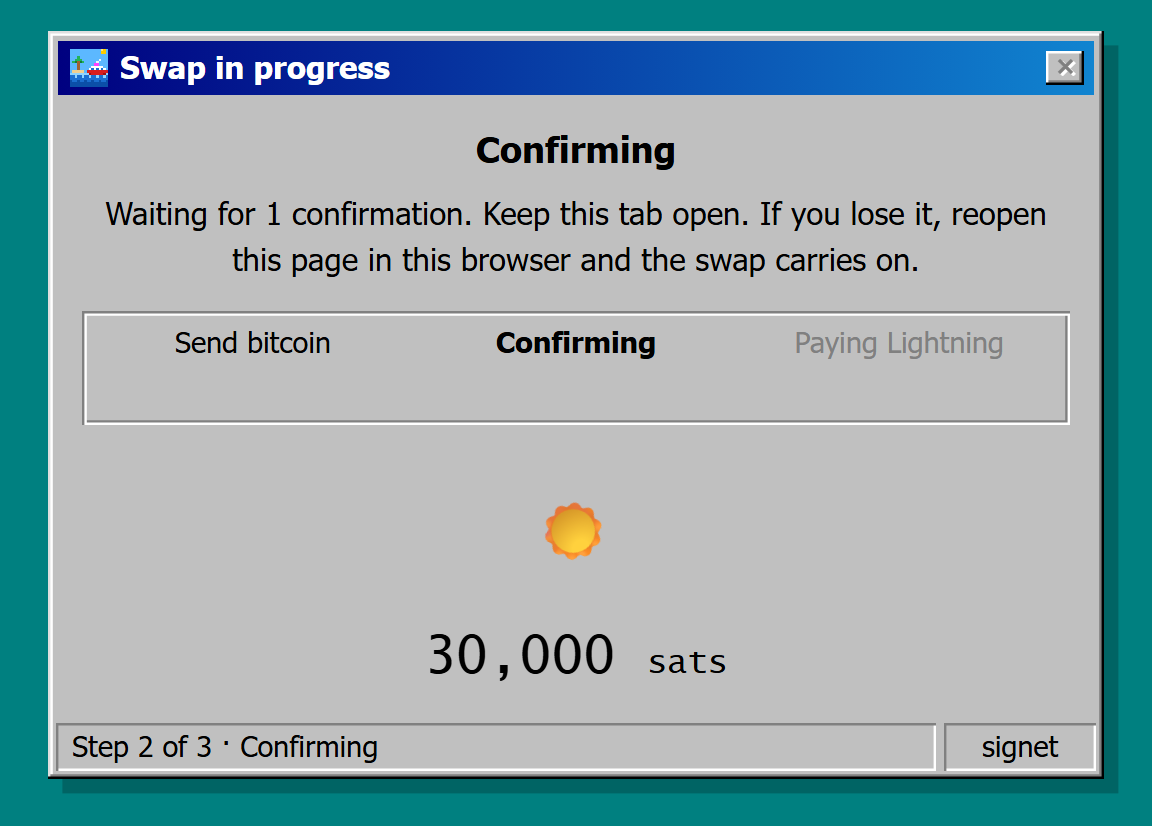
Keep this tab open while the stage reads **Confirming**. On mainnet, Swaptopia waits for two confirmations, usually about 20 minutes. If you lose the tab, reopen the same page in the same browser. The swap [resumes where it left off](/docs/swaptopia/troubleshooting#resume-a-swap-after-closing-the-tab).
To stop before you send anything, select **Cancel**.
If less than the minimum arrives, [top up the same address](/docs/swaptopia/troubleshooting#received-less-than-the-minimum).
If more than 0.1 BTC arrives on mainnet, Swaptopia swaps the maximum. The rest stays in the wallet and becomes [leftover sats](/docs/swaptopia/wallet#send-leftover-sats) if it reaches the Ark server's boarding minimum.
## Wait for the confirmations
Keep this tab open while the stage reads **Confirming**. On mainnet, Swaptopia waits for two confirmations, usually about 20 minutes. If you lose the tab, reopen the same page in the same browser. The swap [resumes where it left off](/docs/swaptopia/troubleshooting#resume-a-swap-after-closing-the-tab).
 ## Create the Lightning invoice
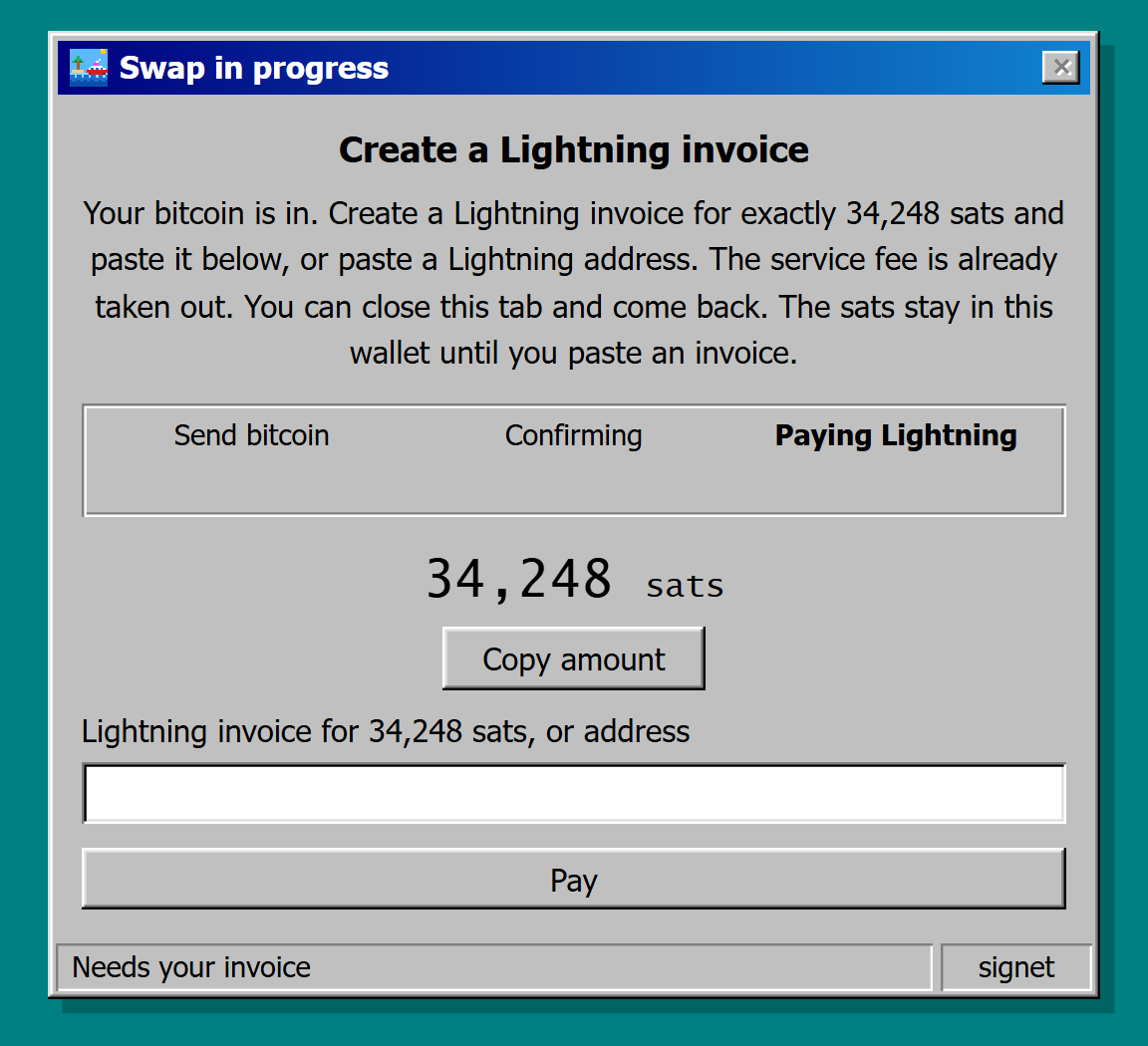
The **Create a Lightning invoice** screen shows the exact figure to invoice, with the service fee already taken out. **Copy amount** puts it on your clipboard.
Set the amount to exactly the copied figure. A Lightning address (`name@domain`) or an amountless invoice works too. Swaptopia pays the figure to it.
Paste it in the **Lightning invoice for N sats, or address** field.
## Create the Lightning invoice
The **Create a Lightning invoice** screen shows the exact figure to invoice, with the service fee already taken out. **Copy amount** puts it on your clipboard.
Set the amount to exactly the copied figure. A Lightning address (`name@domain`) or an amountless invoice works too. Swaptopia pays the figure to it.
Paste it in the **Lightning invoice for N sats, or address** field.
 Swaptopia shows **Paying Lightning** while the payment goes out, then the receipt. Keep the tab open until the receipt appears.
You can close the tab before you paste an invoice. The sats stay in the wallet until you paste one. Swaptopia recalculates the figure each time you reopen the page. Check it again before you create the invoice.
## Read the receipt
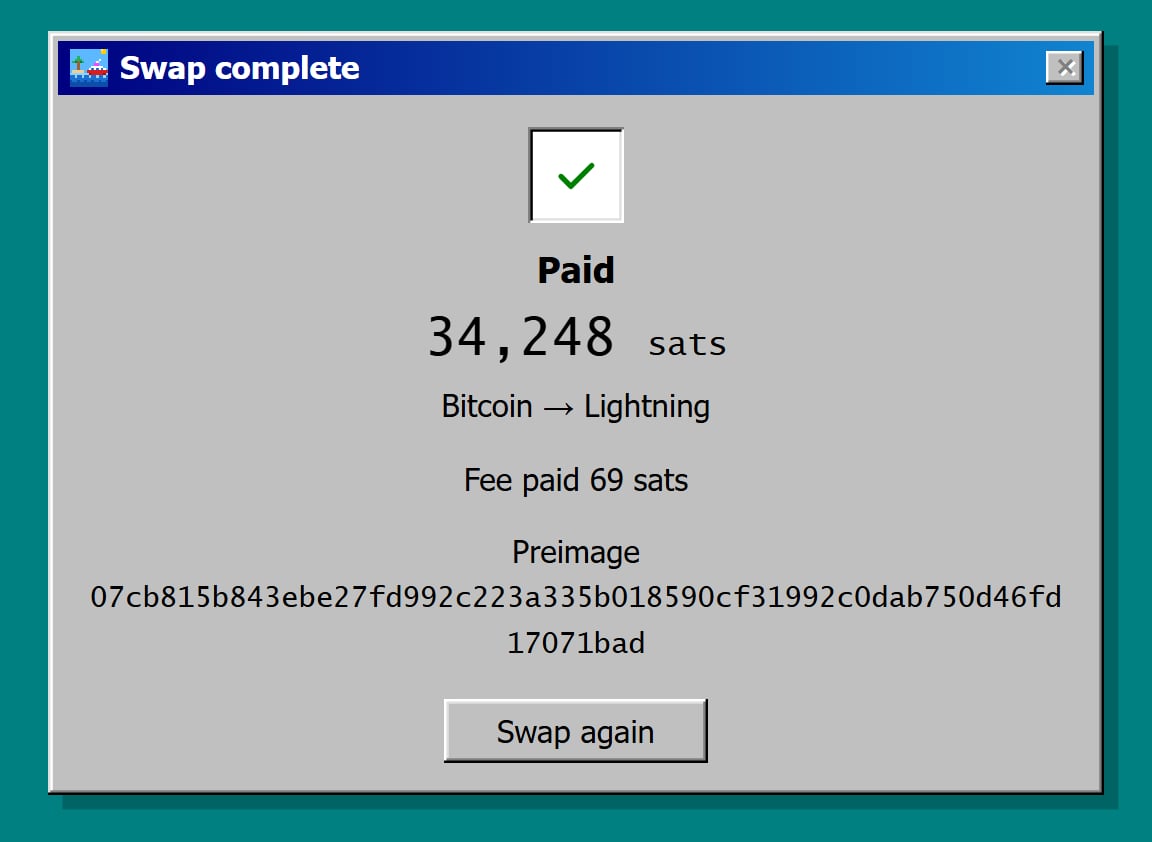
The **Paid** screen closes the swap:
* **Amount:** The sats your Lightning wallet app received.
* **Fee paid:** The fees Swaptopia recorded on the swap, in place of the quote's estimate.
* **Preimage:** The proof that the Lightning payment went through.
Select **Swap again** to return to the swap screen.
Swaptopia shows **Paying Lightning** while the payment goes out, then the receipt. Keep the tab open until the receipt appears.
You can close the tab before you paste an invoice. The sats stay in the wallet until you paste one. Swaptopia recalculates the figure each time you reopen the page. Check it again before you create the invoice.
## Read the receipt
The **Paid** screen closes the swap:
* **Amount:** The sats your Lightning wallet app received.
* **Fee paid:** The fees Swaptopia recorded on the swap, in place of the quote's estimate.
* **Preimage:** The proof that the Lightning payment went through.
Select **Swap again** to return to the swap screen.
 This documentation is built and hosted on [Mintlify](https://mintlify.com), a developer documentation platform.